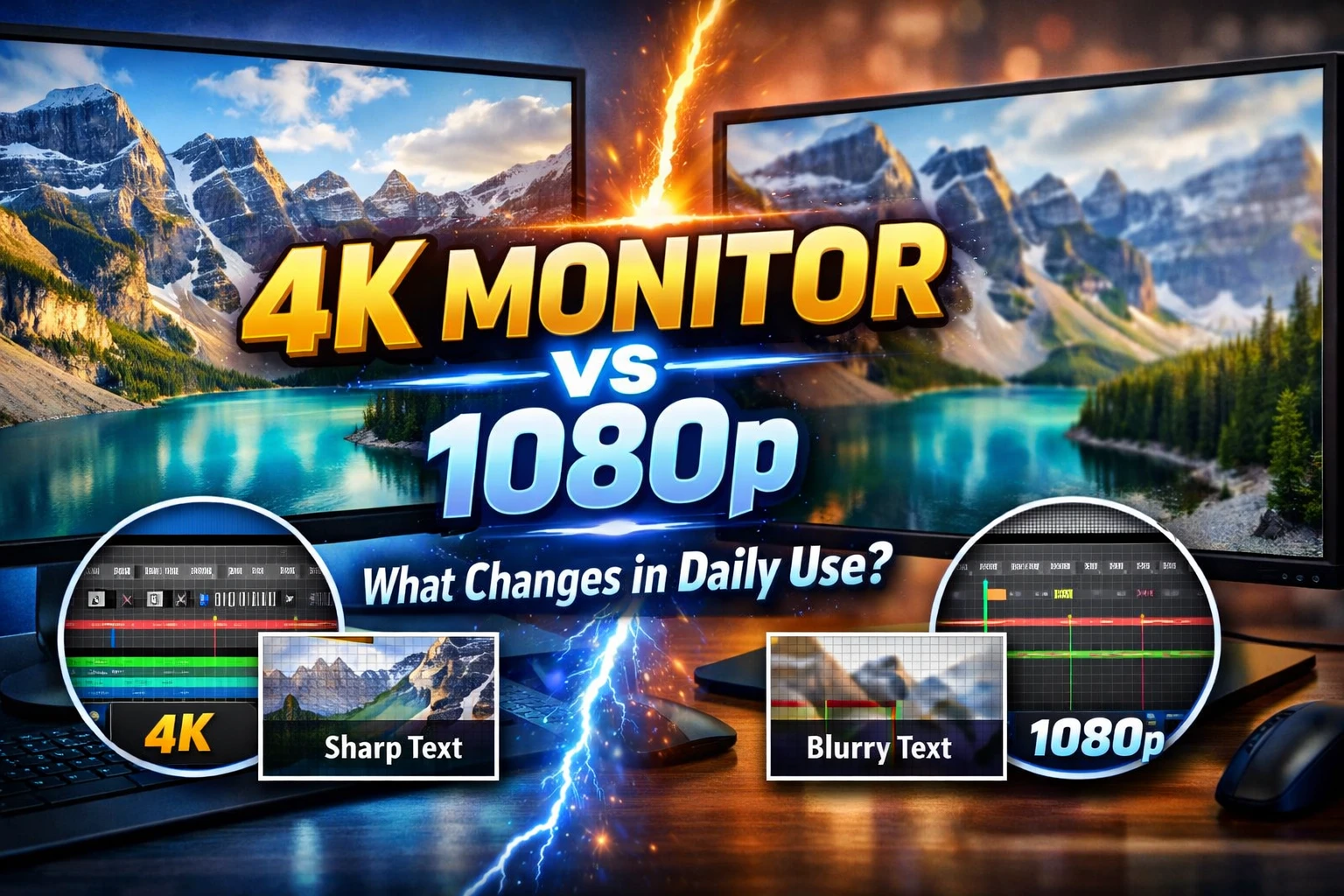
Introduction: Why Resolution Still Matters in 2026
In 2026, the monitor market is more fragmented than ever. Alongside traditional 1080p panels, 4K displays have become widely available at mid-range price points, blurring the line between entry-level and professional setups. For business professionals, remote workers, and content creators, choosing the right resolution is no longer a luxury decision — it is a practical one that directly affects daily output.
Yet the question most people actually ask is not “which resolution is technically superior?” but rather “will I notice a difference on my desk, every day?”
This guide is designed for:
- Business professionals evaluating monitor upgrades
- Remote workers building or optimizing a home office setup
- Beginners who want to understand resolution differences without wading through technical specifications
We will walk through what changes — and what does not — when you move from a 1080p display to a 4K monitor in a real-world work environment.
Understanding the Baseline: What 1080p and 4K Actually Mean
Before comparing, it helps to establish what each resolution represents in practical terms.
1080p (Full HD) refers to a display with 1,920 × 1,080 pixels. It has been the standard consumer resolution for over a decade and remains the dominant choice globally due to its affordability and broad content compatibility.
4K (Ultra HD) refers to a display with 3,840 × 2,160 pixels — four times the total pixel count of 1080p. This means four times as much information can potentially be displayed on screen at once, though the actual visual benefit depends heavily on screen size, viewing distance, and the type of content being used.
Key Technical Differences at a Glance
- Pixel density: A 27-inch 4K monitor delivers approximately 163 PPI (pixels per inch), compared to around 82 PPI for the same size at 1080p.
- GPU demand: 4K rendering requires significantly more graphics processing power, which affects performance in video editing, gaming, and multi-application workloads.
- Content availability: Most streaming platforms now offer 4K content, but a large portion of web-based and enterprise software is still optimized for lower resolutions.
- Cable and port requirements: 4K at 60Hz requires DisplayPort 1.4 or HDMI 2.0 or higher. Older hardware may not support this natively.
(Internal Link: What Is Pixel Density and Why Does It Matter for Productivity?)
Daily Use Comparison: Where the Difference Is Real
Text Clarity and Reading Comfort
This is where 4K delivers its most tangible, consistent benefit in a work context. At equivalent screen sizes, text rendered on a 4K display appears noticeably sharper — edges are cleaner, and small fonts are easier to read without zooming in. For professionals who spend long hours reading documents, spreadsheets, or code, this reduction in visual strain is meaningful.
Key differences in text-heavy work:
- Legal and financial document review benefits significantly from higher pixel density
- Developers working with multiple code windows report less eye fatigue on 4K panels
- Markdown editors, CMS dashboards, and long-form writing environments render more legibly
- Operating system UI scaling (Windows display scaling, macOS Retina) is essential to configure correctly on 4K; poorly scaled interfaces can actually worsen readability
Screen Real Estate and Multitasking
A common misconception is that 4K automatically gives you more usable workspace. In practice, this depends entirely on how you configure display scaling.
If you run a 4K monitor at native resolution (100% scaling), the increased pixel count translates directly into more screen real estate — you can fit more application windows side by side. This is highly productive for roles that involve comparing documents, monitoring dashboards, or managing multiple communication tools simultaneously.
However, at 100% scaling on a 27-inch monitor, UI elements become very small, which is impractical for most users. At 150% or 200% scaling, the effective workspace becomes comparable to a well-configured 1080p display — but with sharper rendering.
Real-world multitasking scenarios:
- Video editors gain from the native 4K canvas for footage preview accuracy
- Business analysts can view larger datasets without horizontal scrolling
- Customer support teams with multiple tabs and CRM windows benefit from expanded layouts
- Developers using split-terminal environments appreciate the additional vertical space
Content Creation and Media Work
For creative professionals — graphic designers, video producers, UX/UI designers — 4K is difficult to argue against. Working on 4K output in a 4K environment means no upscaling artifacts, accurate color grading, and pixel-perfect asset review.
1080p monitors remain functional for content creation but introduce a gap between the work environment and the final output format, which can require additional verification steps before delivery.
Standard Office and Administrative Tasks
For roles centered on email, calendar management, word processing, video calls, and browser-based tools, the practical difference between 4K and 1080p narrows considerably. Applications like Microsoft Office, Google Workspace, Slack, and Zoom do not inherently produce a better experience at 4K when display scaling is applied.
In these workflows, monitor ergonomics, panel type (IPS vs VA), refresh rate, and color accuracy often have a greater day-to-day impact than raw resolution.
Comparison Table: 4K vs 1080p Across Common Use Cases
| Use Case | 4K Advantage | 1080p Advantage | Verdict |
|---|---|---|---|
| Document reading / writing | Sharper text, less eye strain | No meaningful disadvantage | 4K preferred |
| Spreadsheets & data analysis | More rows/columns visible at native res | Adequate at 1080p with good panel | 4K preferred at large screen |
| Video editing (4K output) | Accurate native preview | Requires proxy workflows | 4K strongly preferred |
| Graphic design | Pixel-perfect asset review | Sufficient for web-res work | 4K preferred |
| Web browsing | Slightly sharper images | Fully functional | Minor 4K advantage |
| Video calls (Zoom, Teams) | No meaningful benefit | No disadvantage | Equal |
| Gaming (integrated/casual) | High GPU demand, may reduce frame rate | Smooth performance on low-end GPUs | 1080p preferred |
| Email / calendar / admin | No meaningful benefit | No disadvantage | Equal |
| Programming / IDE use | More code visible (at native scaling) | Functional with good font rendering | 4K preferred |
| Budget-constrained setups | Higher upfront cost | Lower entry cost, more options | 1080p preferred |
Hardware and System Requirements: What You Need to Run 4K Properly
Adopting 4K is not purely a monitor decision. It requires reviewing your existing hardware.
GPU compatibility:
- Integrated graphics (Intel UHD, AMD Vega) can typically output 4K at 30–60Hz for desktop use, but are not suited to 4K video editing or rendering.
- A dedicated GPU (mid-range or above) is recommended for smooth 4K operation in creative workflows.
Port requirements:
- HDMI 2.0 or DisplayPort 1.4 is the minimum for 4K at 60Hz.
- Older laptops with only HDMI 1.4 will cap out at 4K/30Hz, which feels noticeably laggy in daily use.
Cable and adapter considerations:
- Not all USB-C ports support full 4K output; check DisplayPort Alt Mode compatibility on your device.
- Cheap cables can cause signal degradation at 4K; use certified high-speed cables.
(External Reference: RTINGS.com – Monitor Resolution Explained)
Decision Framework: How to Choose Based on Your Workflow
Use the following criteria to determine which resolution aligns with your actual usage pattern:
Choose 4K if:
- Your work involves reading dense documents, code, or fine typography for extended periods
- You create, edit, or review 4K video or high-resolution graphic assets
- You regularly multitask across four or more applications simultaneously
- Your monitor size is 27 inches or larger (pixel density benefit is clearer at larger sizes)
- Your hardware supports 4K output at 60Hz without strain
Stay with 1080p if:
- Your primary tasks are email, web browsing, video calls, and office suite tools
- Your current GPU or laptop does not support 4K at 60Hz
- Budget is a constraint and you need to allocate resources elsewhere in your setup
- You prefer higher refresh rates (144Hz+) for smoother cursor movement, and your GPU cannot sustain both 4K and high refresh simultaneously
Consider 1440p (QHD) as a middle ground:
- For many business users, 1440p (2,560 × 1,440) provides a meaningful sharpness improvement over 1080p without the hardware demands of 4K. It is worth evaluating as a practical compromise, particularly for 24–27 inch screens.
(Internal Link: 1440p vs 4K: Which Resolution Is Right for Your Work?)
(External Reference: Microsoft – Adjust display resolution in Windows)
Pros and Cons Summary
4K Monitor
Advantages:
- Significantly sharper text and image rendering
- Expanded screen real estate at native resolution
- Future-proof for content creation workflows
- Increasingly affordable at 27-inch size class
Disadvantages:
- Requires compatible GPU and ports
- Higher cost than equivalent 1080p panels
- Display scaling configuration can be confusing
- Overkill for standard office tasks at smaller sizes
1080p Monitor
Advantages:
- Wide availability across all screen sizes and price points
- Full software and driver compatibility
- No GPU overhead for standard workloads
- Higher refresh rates more accessible in this resolution class
Disadvantages:
- Text rendering less sharp on larger panels
- Limited screen real estate for multitasking at 24+ inches
- May feel dated in creative or technical workflows
FAQ: 4K Monitor vs 1080p
Q1. Can I notice the difference between 4K and 1080p when just browsing the web? For most websites, the difference is subtle. Web content is typically designed for standard resolutions, and images are often compressed. The sharpness difference becomes more evident in high-resolution photographs and text-heavy pages, particularly at larger screen sizes.
Q2. Does using a 4K monitor slow down my computer? For standard office tasks, the performance impact is minimal on modern hardware. However, tasks that involve rendering — video editing, 3D modeling, or even some browser-heavy workflows — will consume more GPU resources at 4K compared to 1080p.
Q3. Is 4K worth it on a 24-inch monitor? The pixel density on a 24-inch 4K display is very high, which produces sharp text but also requires aggressive display scaling to make UI elements readable. Most users find the sweet spot for 4K to be 27 inches or larger, where the resolution benefit is more balanced.
Q4. Will my existing laptop support a 4K monitor? Check whether your laptop has HDMI 2.0, DisplayPort 1.4, or a USB-C port with DisplayPort Alt Mode support. If it only has HDMI 1.4, you will be limited to 4K at 30Hz, which is noticeable and generally not recommended for daily use.
Q5. How does 4K affect video conferencing quality? The resolution of your monitor does not affect how others see you in video calls — that is determined by your webcam. However, a 4K display can make shared screens and presentations appear sharper on your end, which is beneficial in detail-sensitive review sessions.
Summary
Moving from 1080p to 4K is not a universally beneficial upgrade — it is a contextual one. Professionals who work with dense text, high-resolution media, or multi-window workflows will see consistent, meaningful improvements in their daily experience. For those whose work revolves around communication tools, standard documents, and web browsing, the difference is present but rarely decisive.
The most important variable is not the resolution itself — it is whether your hardware, screen size, and actual daily tasks justify the investment. A well-chosen 1080p or 1440p monitor configured with the right panel type and ergonomics will outperform a poorly set-up 4K display in practical productivity.
Before making a decision, audit your current workload, verify your hardware capabilities, and consider the full cost of the transition, including cable upgrades and potential GPU requirements.
Next: Considering a monitor upgrade? Read our guide on How to Choose the Right Monitor Size for Your Desk Setup (Internal Link)